General Listing
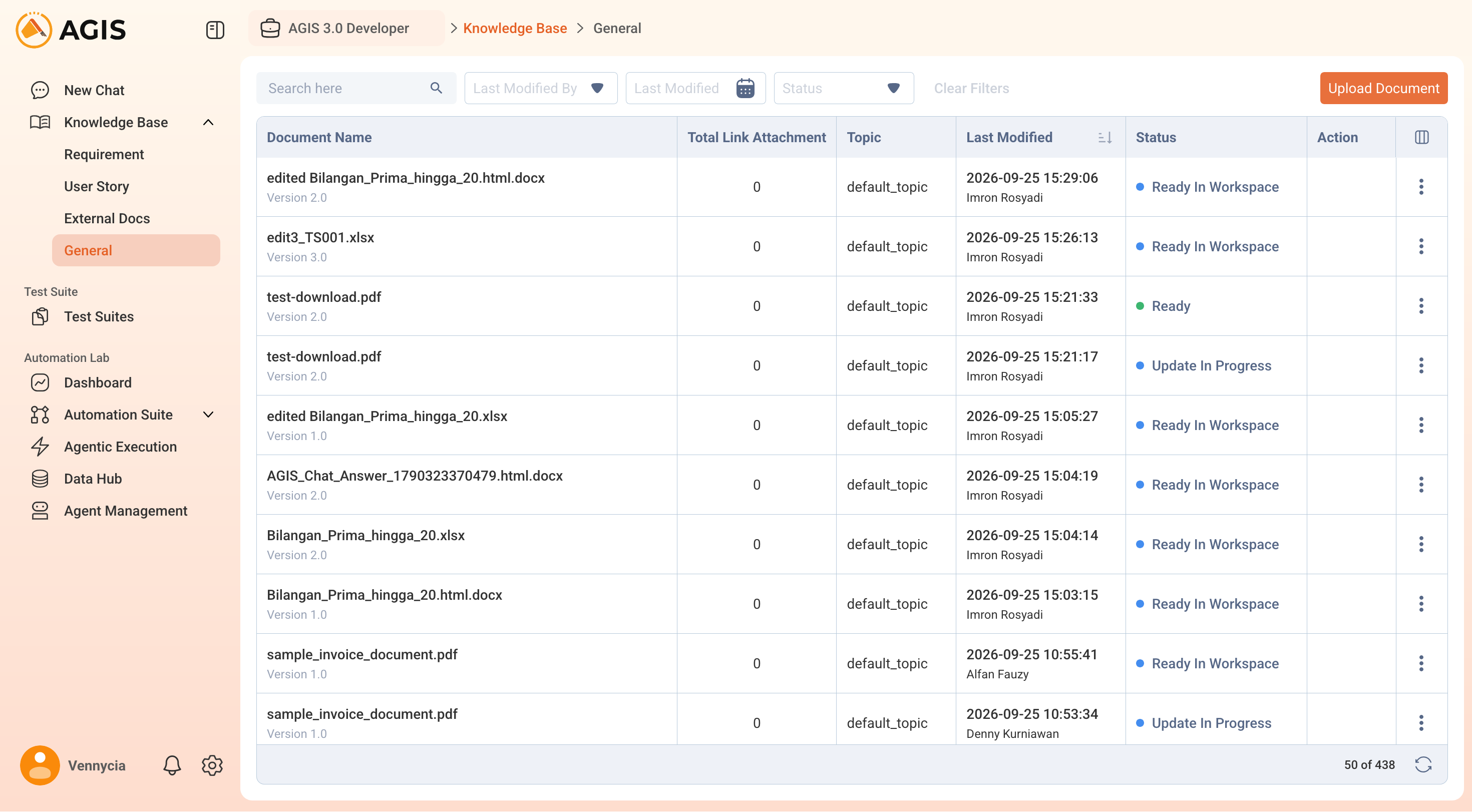
The General page shows the list of documents in the Knowledge Base. You can search and filter the list, and see each document's topic, last modification, and status.
Filters and Search
At the top of the list, you can narrow down the documents using:
| Filter | Description |
|---|---|
| Search here | Search documents by keyword. |
| Last Modified By | Filter by the user who last modified the document. |
| Last Modified | Filter by the last modified date. |
| Status | Filter by document status. |
| Clear Filters | Reset all applied filters. |
The Upload Document button on the right side of the toolbar is used to add a new document. See Upload Document.
Document Table
Each row in the table represents one document. The table has these columns:
| Column | Description |
|---|---|
| Document Name | The file name of the document, with its version shown below the name (for example, Version 1.0). |
| Total Link Attachment | The number of link attachments. |
| Topic | The topic assigned to the document (for example, default_topic). |
| Last Modified | The date and time of the last modification, followed by the name of the user who modified it. |
| Status | The current status of the document. |
| Action | A shortcut action that depends on the document's status |
Click the ⋮ icon at the end of a row to open more actions for that document.
Status Actions
The available action depends on the document's status:
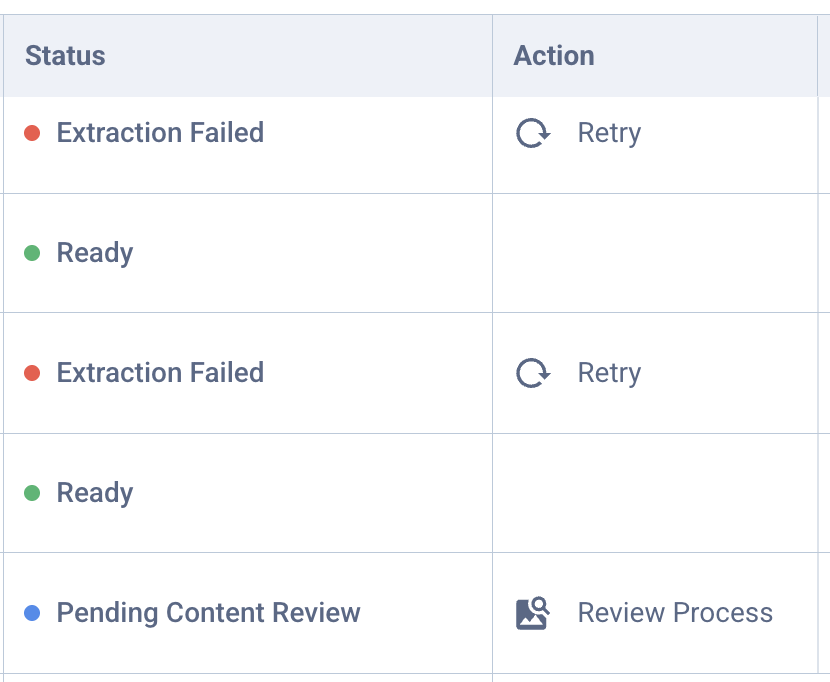
- Failed — Click Retry to retry the document processing.
- Pending Content Review — Click Review Process to review the document content.
